Image

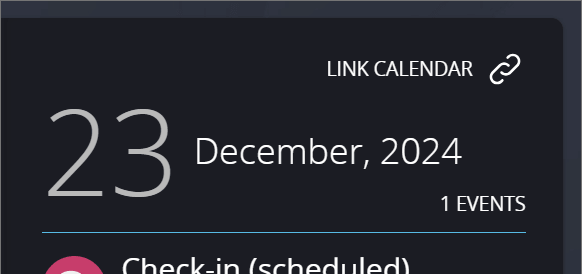
Users can link to their external calendar using the “Link calendar” option in their People First Calendar here:
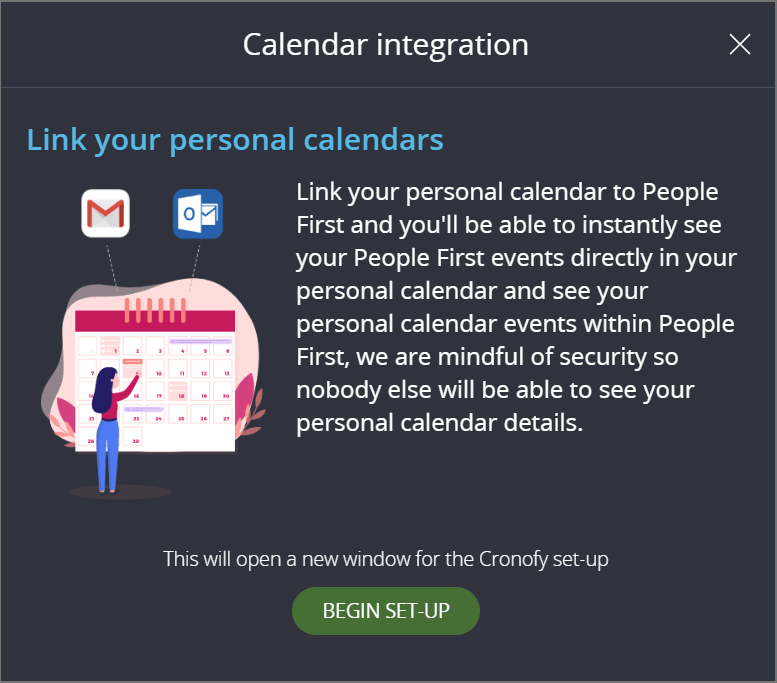
On selection it explains what the integration does, and you can begin the set-up process:
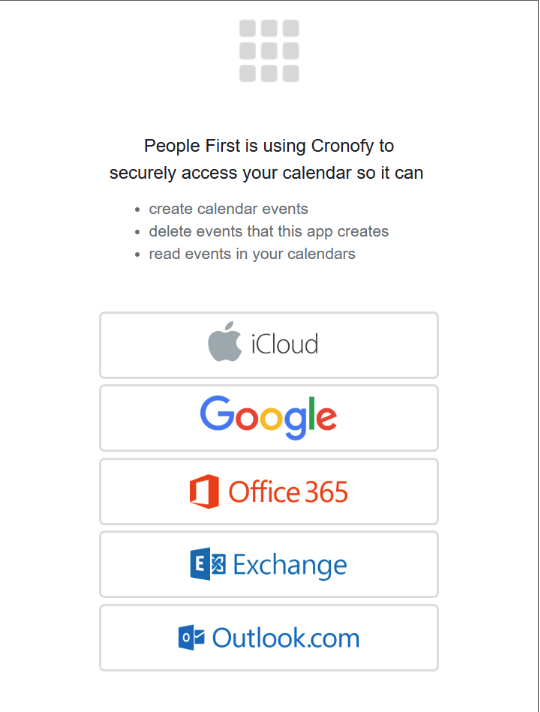
You will then go through the set-up process with Cronofy:
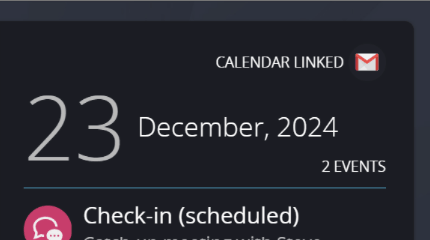
Once linked the “Link Calendar” link will update to “Calendar Linked” with the icon of the connected calendar e.g. a Google Account:
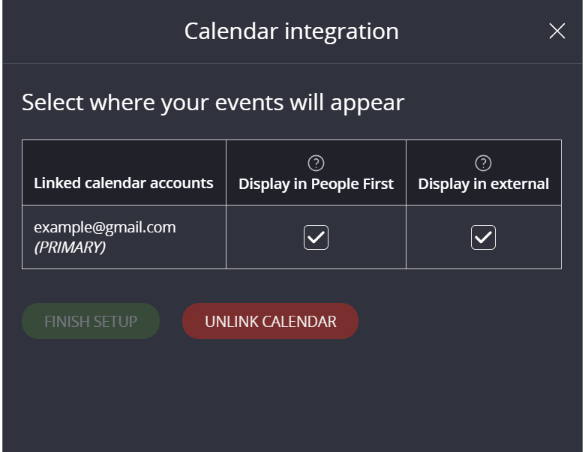
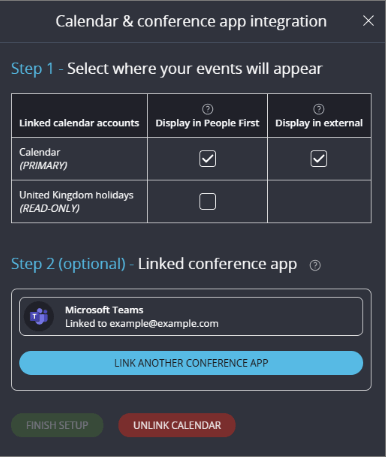
Once linked, you have the two options:
Display in People First: By selecting this option events and meetings within your personal external calendar will display in your People First calendar. Please note, your personal event details will not be displayed to anyone else, other people will only see that you are “busy” at that time.
Display in external: By selecting this option, your People First events and meetings will display in your chosen linked external calendar.
You can update these options or unlink your calendar at any time.
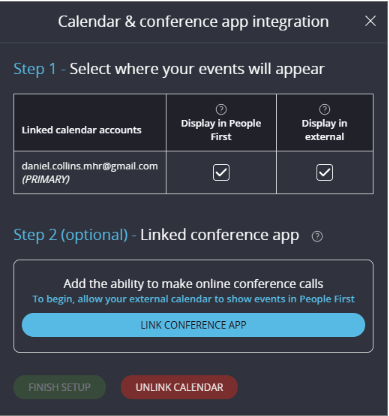
If your System Administrator has turned video conferencing on, you will see an additional option to “Link Conference App”. You can choose to have your People First calendar create and read online meetings and events as well, with Microsoft Teams, Zoom and GoToMeeting.
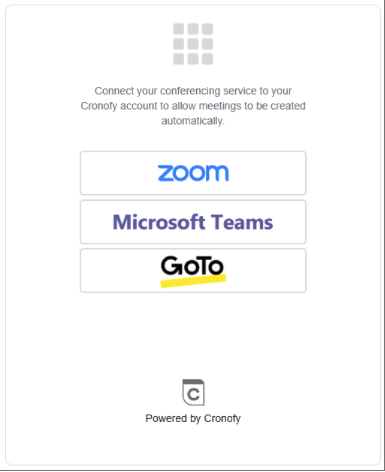
You will then go through the set-up process with Cronofy:
Once linked, it will display the linked app – for example, Microsoft Teams:
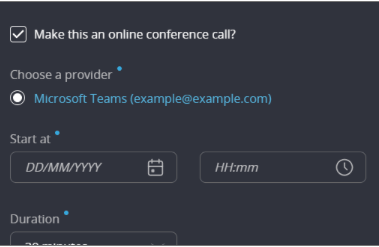
Users will now have the option to “Make this an online conference call?” when creating, for example Check-ins:
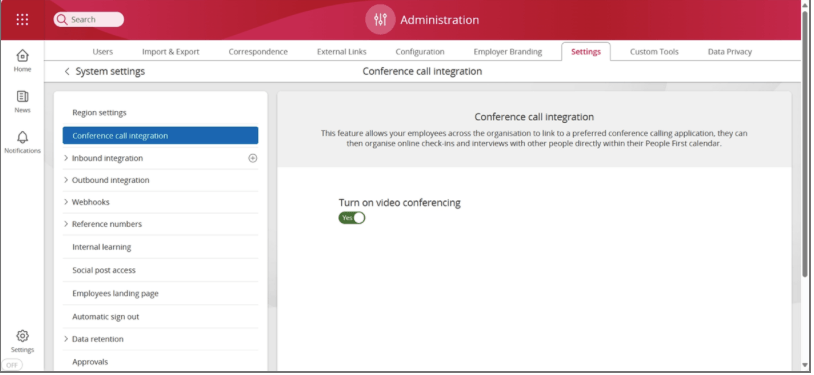
To allow this, System Administrators will need to turn on video conferencing for their users, which can be done in System settings > Settings > Conference call integration, by turning the toggle to ‘Yes’: