Image

Below are some instructions on how to configure Power Query applications to authenticate with the People First OData API.
Get Data dropdown menu. From the dropdown, select the From Other Sources and then Blank Query menu items. This will open the Power Query Editor.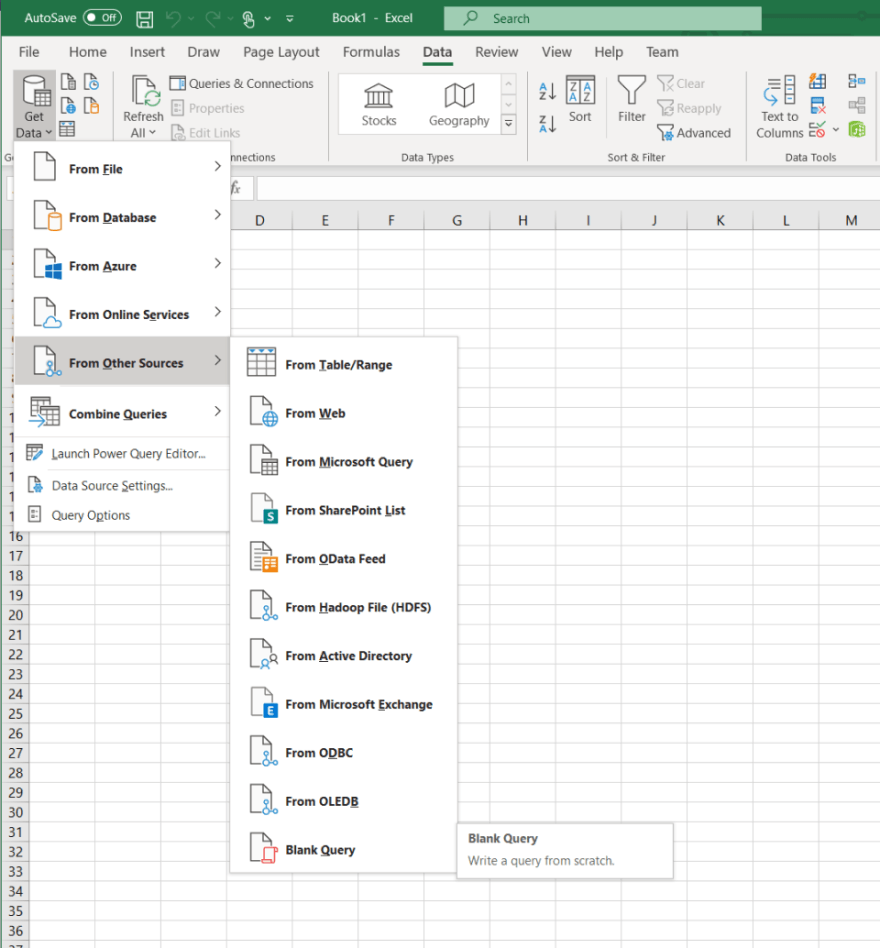
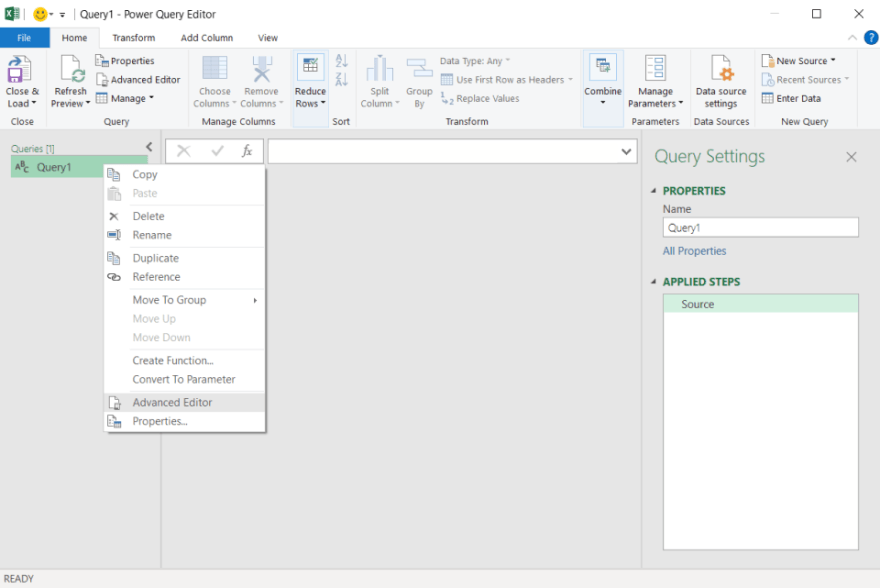
2. Select the query you want to configure from the list within the left-hand panel. Right-click and select Advanced Editor from the context menu. This will display the Advanced Editor dialog.
3. Paste the following query script into the Advanced Editor, substituting the placeholders with values appropriate for your system and use case.
let
    Source = OData.Feed("https://TENANT_CODE-ENVIRONMENT_CODE.people-first.com/ODATA_REQUEST_URI_PATH"
    , null
    , [Headers=[TenantCode="TENANT_CODE", EnvironmentCode="ENVIRONMENT_CODE", Authorization="Bearer ACCESS_TOKEN"]])
in
    Source
Where:
TENANT_CODE is the tenant code that was provided by MHR.ENVIRONMENT_CODE is the environment code that was provided by MHR. When accessing your default environment (typically your production environment) the -ENVIRONMENT_CODE hostname segment, and EnvironmentCode HTTP header field can be omitted.ODATA_REQUEST_URI_PATH is the URI path for the OData request you are making.ACCESS_TOKEN is the access token supplied by your System Administrator, or ID token obtained separately (see:OIDC ID Tokens).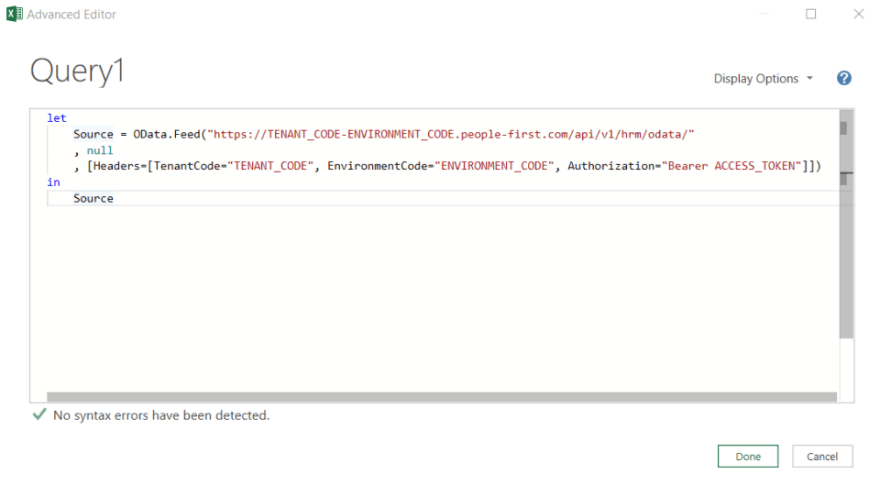
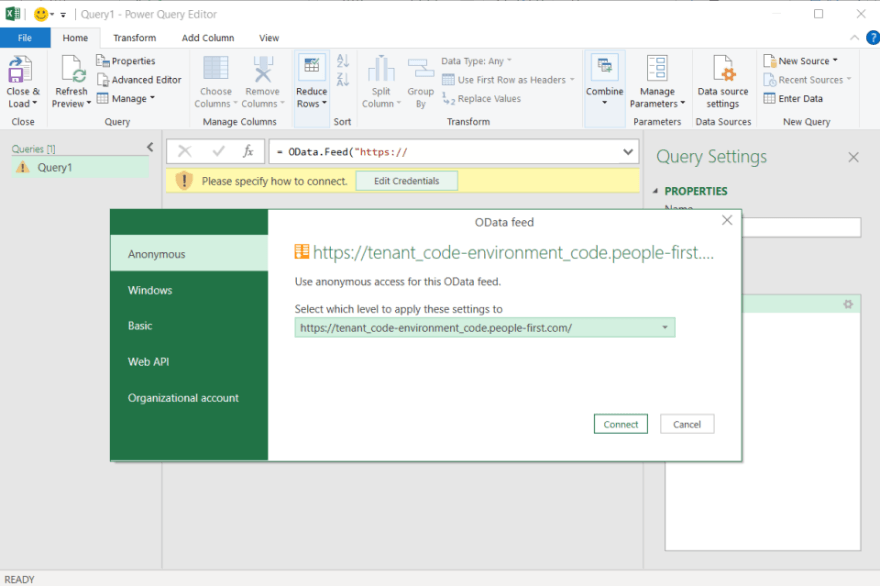
4. You might be prompted to edit your credentials. If so, open the Edit Credentials dialog and choose anonymous access.
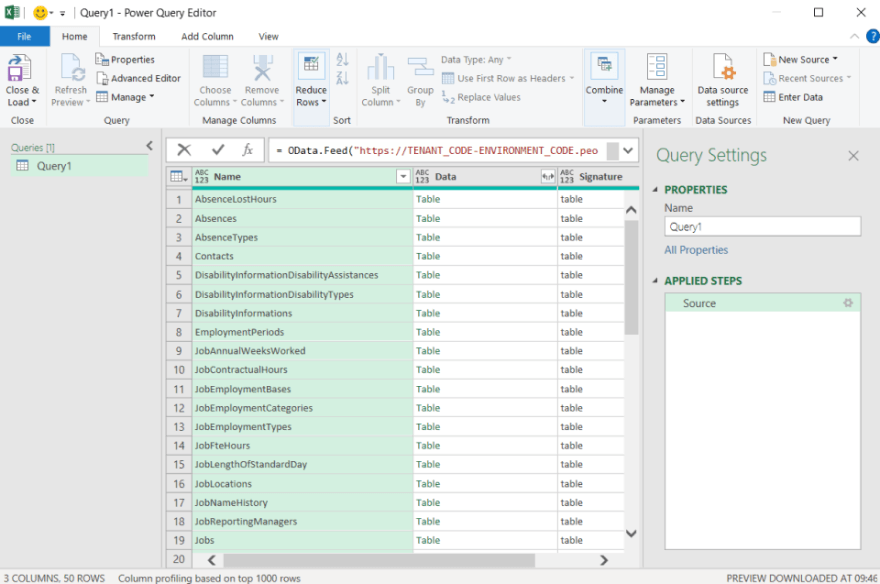
5. You should now be presented with a preview of your OData query results.